Anthropic Academy Courses My Profile Sign Out

Установка Claude Code

Claude Code легко установить, если вы хотите использовать его в терминале, в веб-версии или в вашей IDE.

Терминал

На macOS, Linux или WSL используйте команду curl для установки в один шаг. Если вы предпочитаете Homebrew, можно использовать команду brew install, но учтите, что этот метод не поддерживает автообновление.

На Windows доступно несколько вариантов. В PowerShell используйте команду Invoke-RestMethod. В CMD используйте команду curl. Также доступна команда winget, но, как и Homebrew, она не поддерживает автообновление.

После установки вы сможете запустить команду `claude`. Если этого не происходит, перезапустите терминал. Перейдите в директорию вашего проекта и выполните:

```

claude

```

Вам предложат пройти первоначальную настройку: выбрать цветовую тему и войти в аккаунт Claude (Pro, Max или Enterprise) или использовать API-ключ. Если в вашей организации есть аккаунт Claude Enterprise, обязательно выберите этот вариант.

В какой бы директории вы ни запустили `claude`, у него будет доступ к этой директории и всем её подпапкам.

Visual Studio Code

Откройте панель расширений и найдите "Claude Code". Выберите расширение от Anthropic с синей галочкой подтверждения. Нажмите "Установить".

После установки может потребоваться перезапуск VS Code. Когда он будет запущен, откройте палитру команд с помощью сочетания Ctrl/Cmd + Shift + P и найдите "Claude Code Open in New Tab". Также вы можете нажать на логотип Claude, если он отображается в боковой панели.

Расширение для VS Code предоставляет почти такой же опыт, как и терминал. Вы также можете отключить UI и использовать терминальный опыт напрямую в настройках.

JetBrains

Установите плагин Claude Code из JetBrains Marketplace. После установки перезапустите IDE. При повторном открытии вы увидите логотип Claude. Нажав на него, откроется панель с терминальным опытом, который работает вместе с вашим редактором.

Настольное приложение

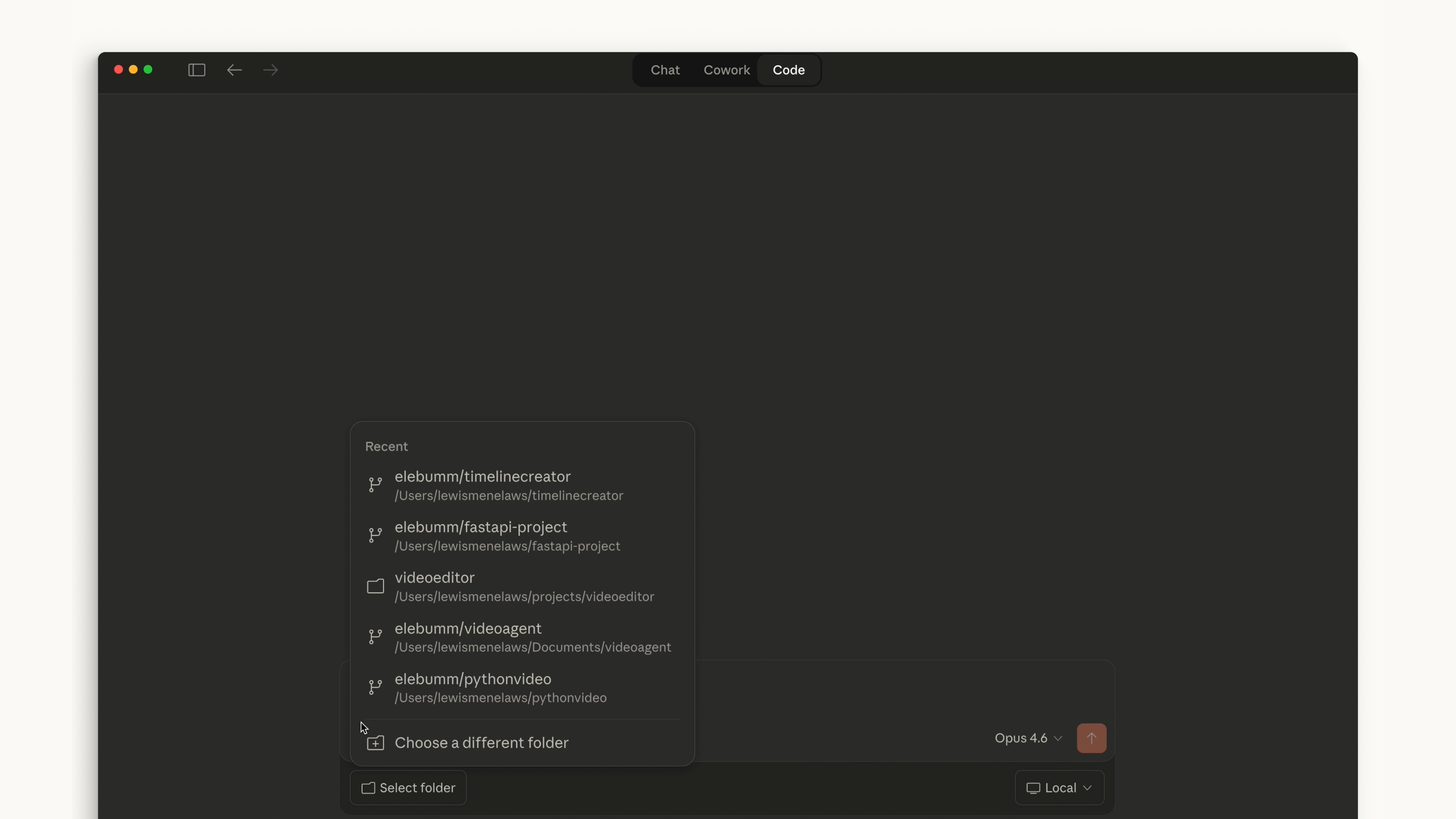
После установки и входа в аккаунт в Claude Desktop вы увидите переключатель в верхней части с надписью "Code". Внешний вид похож на чат, но позволяет работать в определённой папке, изменять разрешения и даже работать в облачной среде.

Веб-версия

В веб-версии доступ к Claude Code можно получить по адресу claude.ai/code или нажав на метку "Code" в боковой панели чат-приложения. Это работает аналогично настольному приложению, но вы ограничены репозиториями GitHub.

Какую версию выбрать?

Если вы хотите быть в курсе последних обновлений, используйте терминал — именно здесь появляются новые функции. Интеграции с IDE предлагают почти такой же опыт, если вы предпочитаете, чтобы Claude Code был тесно связан с вашим редактором кода.

Настольное приложение отлично подходит для того, чтобы Claude работал в фоновом режиме, пока вы занимаетесь другими задачами.

Веб-версия Claude Code — хороший вариант, если вы хотите удалённо работать над проектами через репозиторий GitHub.

Как именно использовать Claude Code — решать вам.

Claude Code is simple to install whether you want to use it in your terminal, on the web, or in your IDE.

Terminal

On macOS, Linux, or WSL, use the curl command to install it in one go. If you prefer Homebrew, you can also use brew install, but note that this method doesn't support auto-updates.

On Windows, there are a few options. In PowerShell, use the Invoke-RestMethod command. In CMD, use the curl command. There's also a winget command available, though like Homebrew, it won't auto-update.
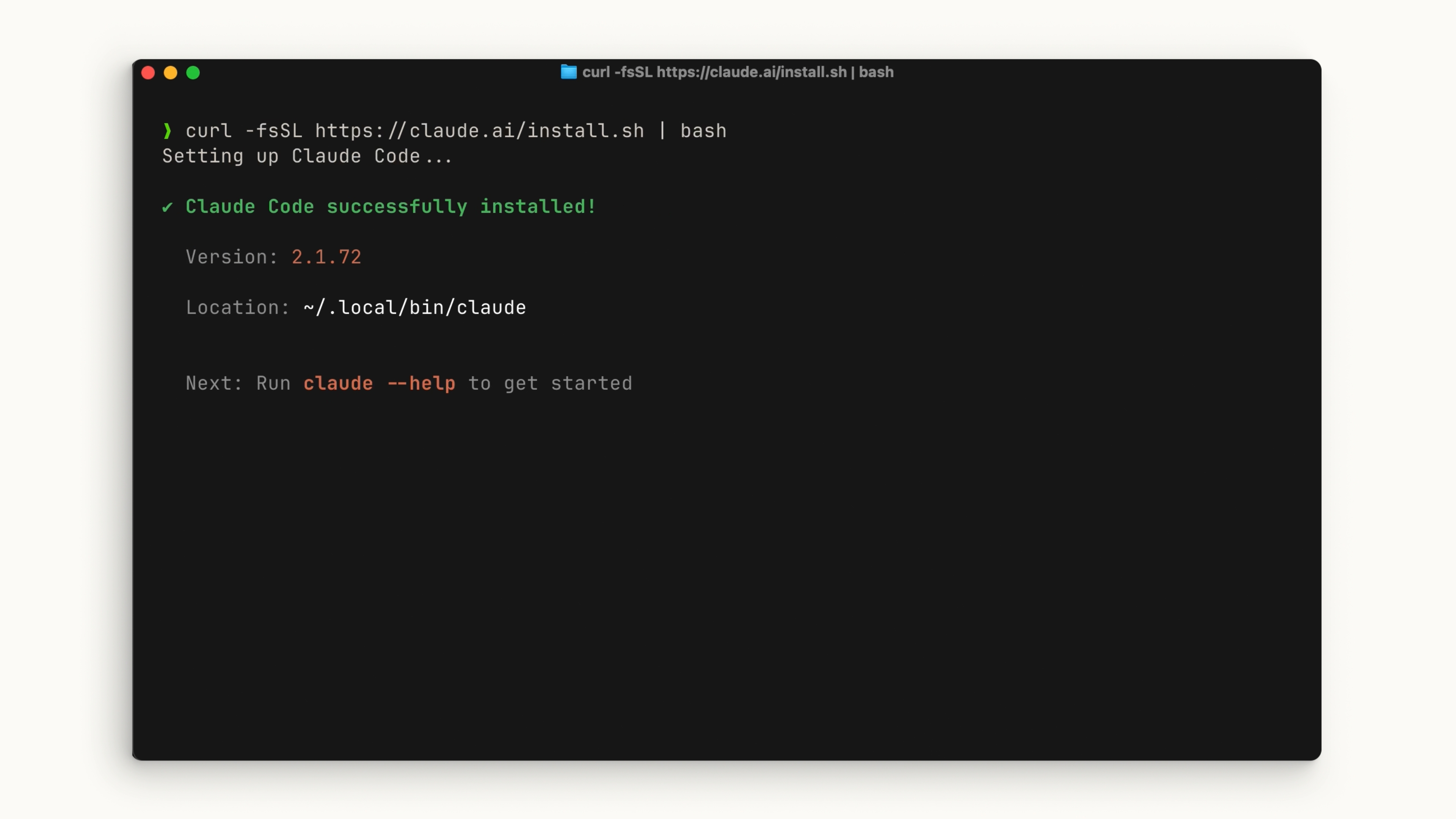
Terminal showing Claude Code successfully installed via curl

After installation, you should be able to run the claude command. If not, restart your terminal. Navigate to your project directory and run:

claude

You'll go through some initial setup steps like choosing your color theme and signing in with your Claude account (Pro, Max, or Enterprise) or using an API key. If your organization has a Claude Enterprise account, be sure to select that option. Claude Code login method selection: subscription, API, or third-party platform
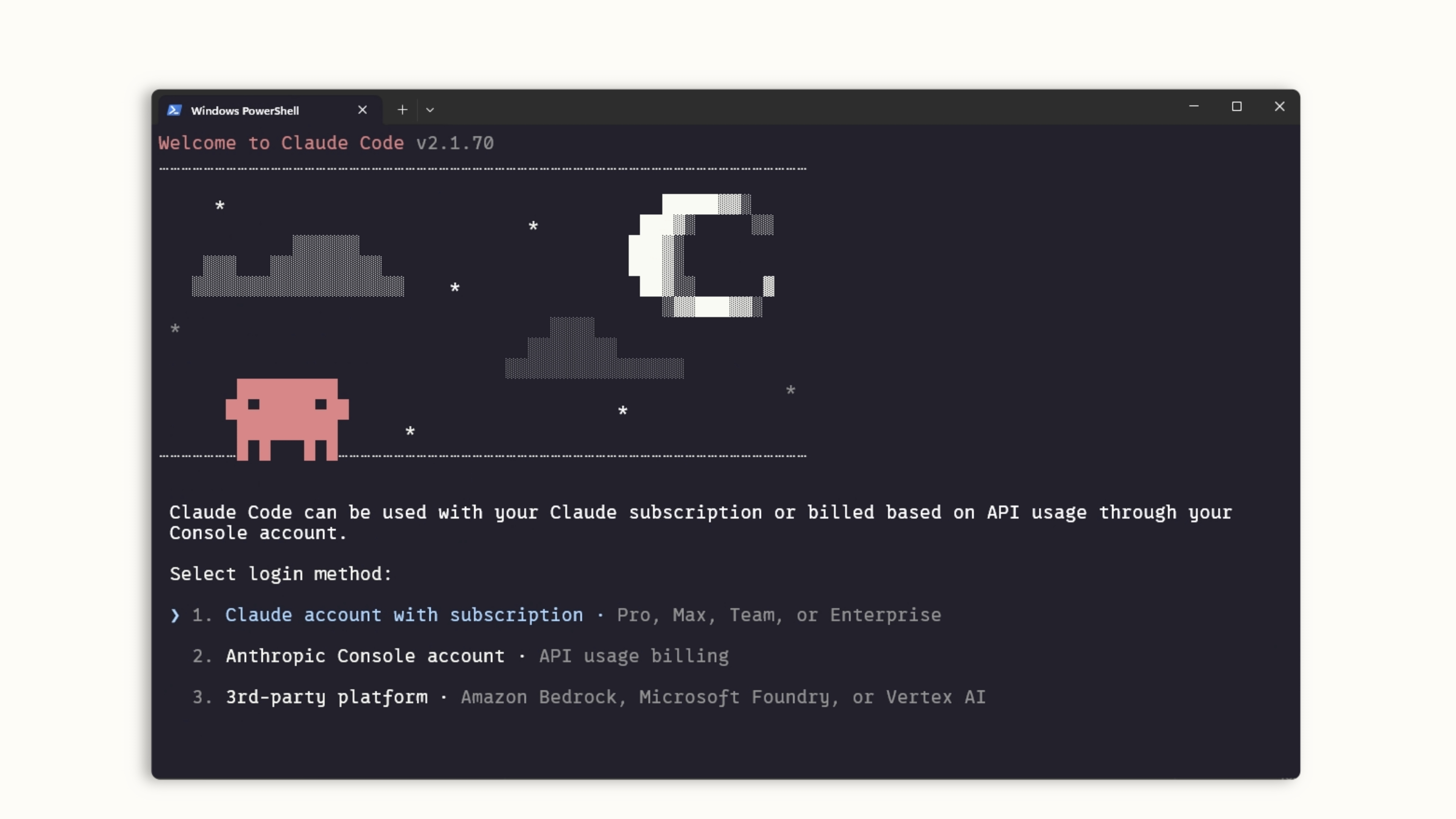
Whatever directory you run claude in, it will have access to that directory and all of its subfolders.

Visual Studio Code

Open your Extensions panel and search for "Claude Code." Look for the extension by Anthropic with the blue verification check. Hit install.

After installation, you may need to restart VS Code. Once it's running, open the command palette with Ctrl/Cmd + Shift + P and search for "Claude Code Open in New Tab." You can also click the Claude logo if it's visible in your sidebar.
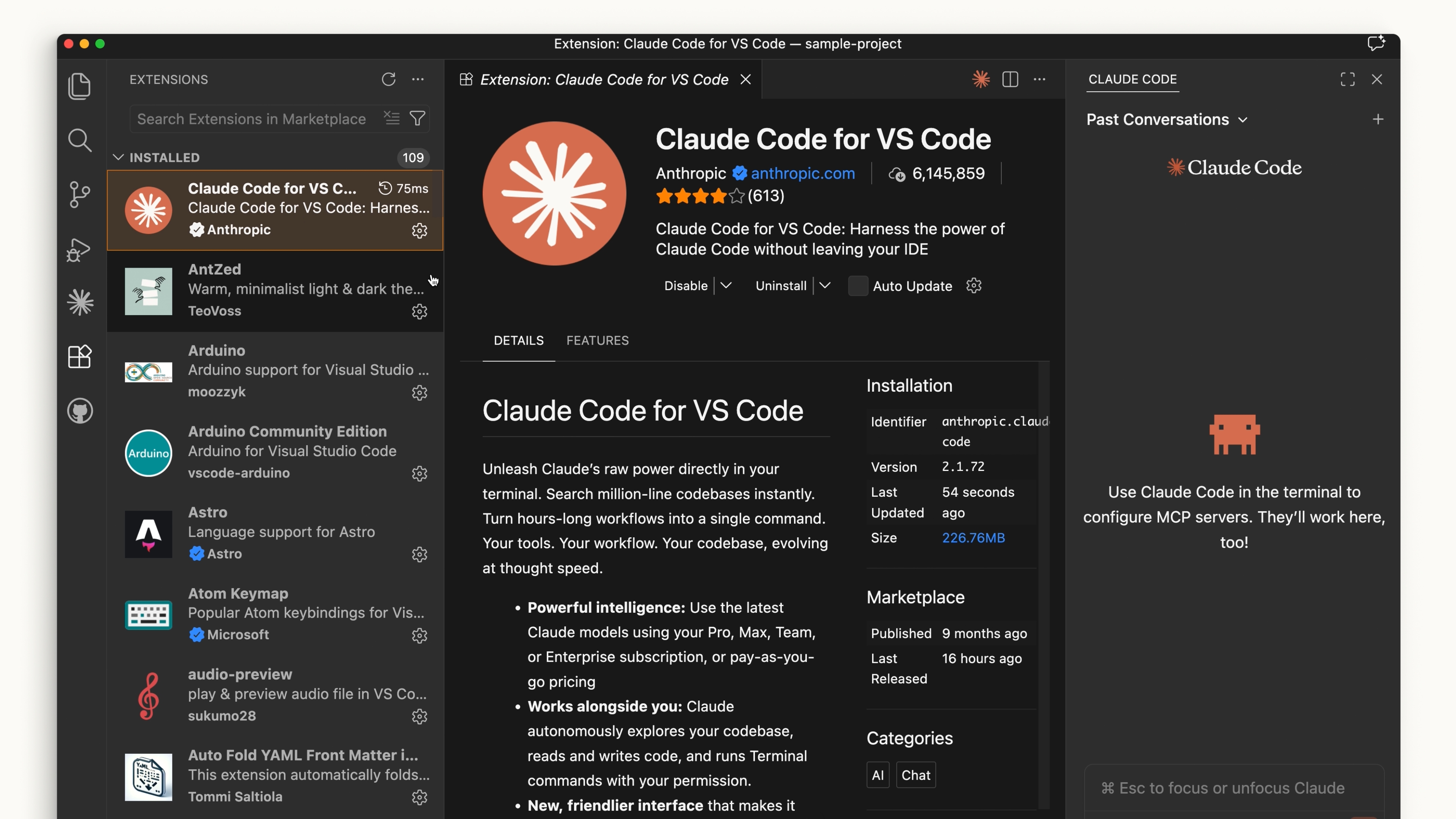
Claude Code extension page in VS Code marketplace

The VS Code extension provides a very similar experience to the terminal. You can also opt out of the UI and use the terminal experience directly in your settings.

JetBrains

Install the Claude Code plugin from the JetBrains Marketplace. After installation, restart your IDE. When you reopen it, you'll see the Claude logo. Clicking it opens a pane with the terminal experience that works alongside your editor.
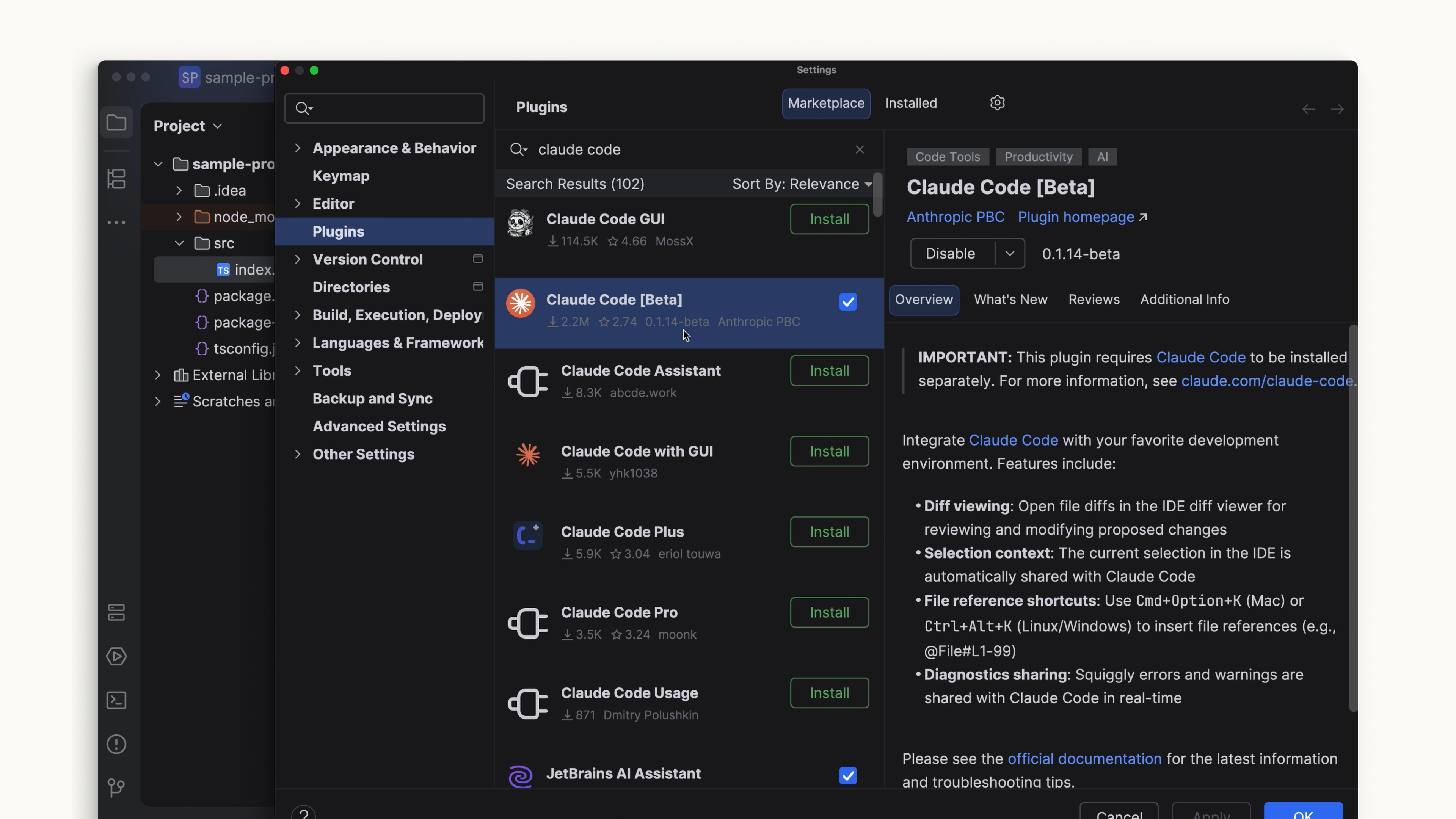
Claude Code plugin in the JetBrains Marketplace 

Desktop

After installing and signing into Claude Desktop, you'll see a toggle at the top labeled "Code." The look and feel is similar to the chat side of things, but it lets you work in a specific folder, change permissions, and even work in a cloud environment. Claude Desktop Code view showing recent project folders
Web

On the web, access Claude Code by going to claude.ai/code, or by clicking the "Code" label in the sidebar of the chat app. This works similarly to the desktop app, but you're restricted to GitHub repositories.
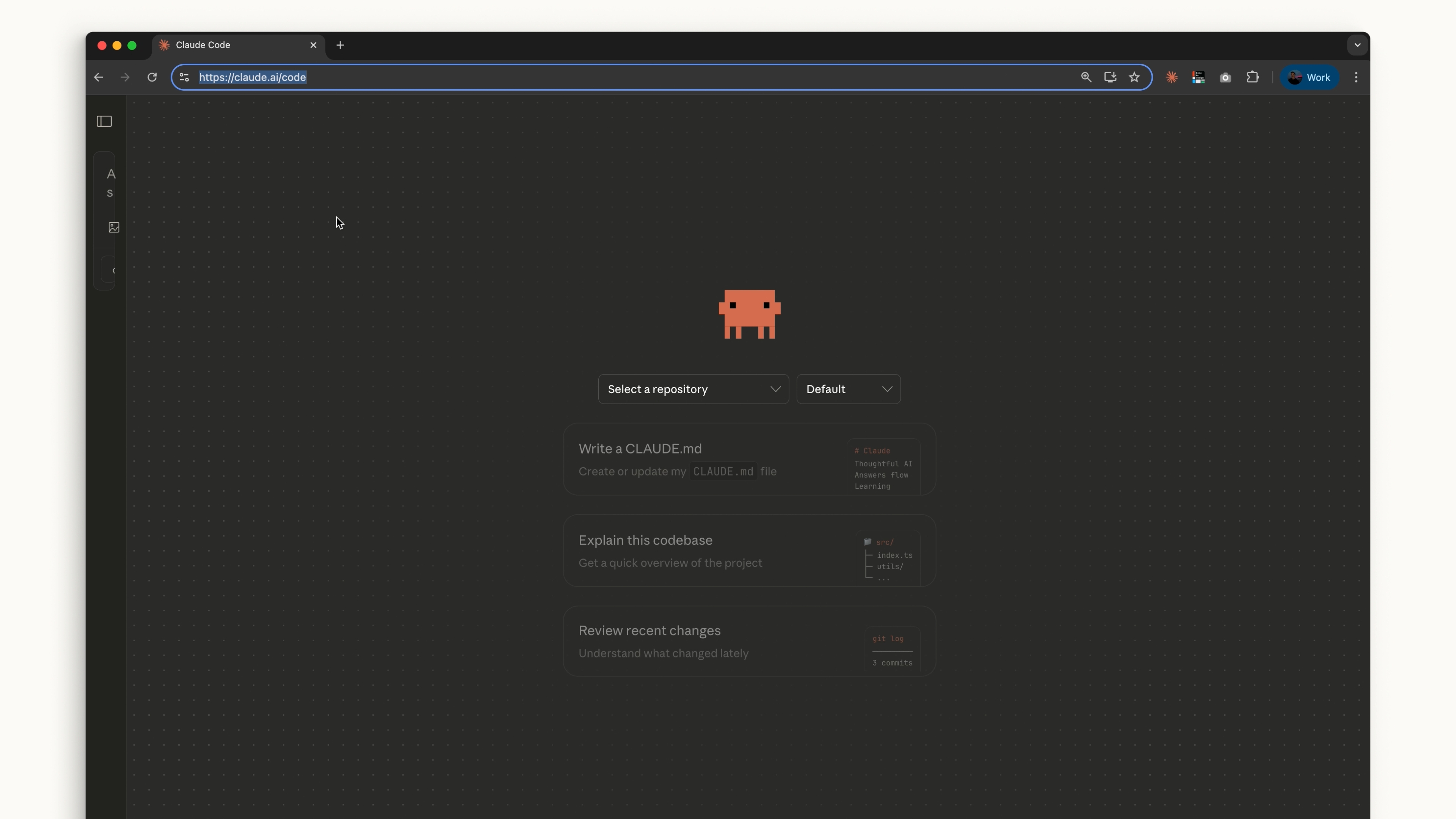
Claude Code on the web at claude.ai/code with repository selection

Which One Should I Use?

If you want to stay on the cutting edge, the terminal is your best bet — features ship there first. The IDE integrations offer a nearly identical experience if you prefer Claude Code to feel more intertwined with your code editor.

Desktop is great for letting Claude run in the background while you handle other tasks.

Claude Code on the web is a solid option if you want to remotely work on projects through a GitHub repository.

However you want to use Claude Code is up to you.